The First 24 Hours With Your Apple Device: A Smart Setup Guide
By Mukesh kumar
image Unboxing a new iPhone, iPad, or Mac is exciting but what you do next matters more than most people realize. A thoughtful setup doesn’t just improve perfo…
Article body
Unboxing a new iPhone, iPad, or Mac is exciting but what you do next matters more than most people realize. A thoughtful setup doesn’t just improve performance; it protects your privacy, extends battery life, and shapes your daily experience.
This guide walks you through the essentials what to enable, what to disable, and how to tailor your device so it actually works for you.
⚙️ Part 1: Start With the Basics
- Update Your Device Immediately
Before anything else, update your system.
Mac: System Settings → General → Software Update
iPhone/iPad: Settings → General → Software Update
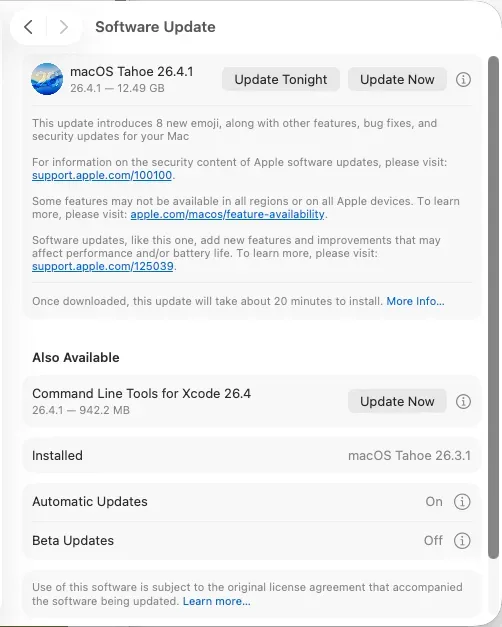
These updates often fix hidden bugs, patch security vulnerabilities, and improve battery efficiency. Skipping this step is one of the most common mistakes new users make.
- Set Up Your Apple ID & iCloud Thoughtfully
Your Apple ID is the backbone of your ecosystem.
Enable only what you truly need:
iCloud Drive (for files)
Photos (if you use multiple Apple devices)
Contacts, Notes, and Keychain (highly recommended)
Be selective turning everything on by default can quietly consume storage and sync unnecessary data.
- Enable Find My (Non-Negotiable)
Go to: Settings → Apple ID → Find My
Turn on all options.
If your device is ever lost or stolen, this feature becomes invaluable. It’s not just tracking its peace of mind.
🔒 Part 2: Lock Down Privacy & Security
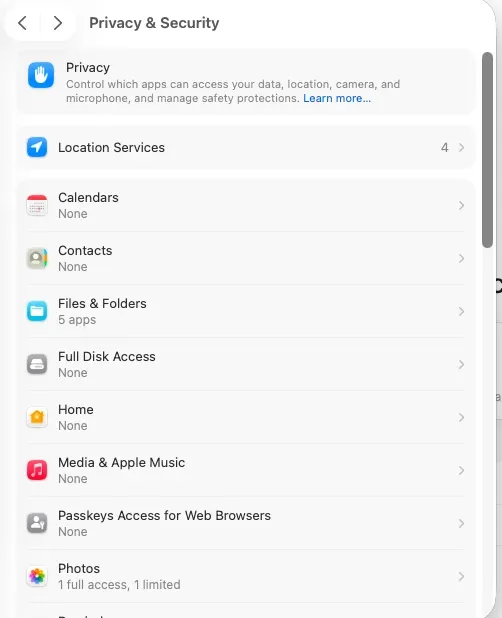
- Take Control of App Permissions
Navigate to: Settings → Privacy & Security
Turn App Tracking OFF
Set Location Access to “While Using the App”
Review Microphone & Camera access and remove anything unnecessary
Many apps ask for more access than they need don’t grant it blindly.
- Strengthen Your Lock Screen
Use Face ID / Touch ID
Upgrade your passcode:
iPhone: switch to a custom alphanumeric code
Mac: use a strong, unique password
Convenience is good security is better.
- Adjust Auto-Lock Settings
iPhone: 30 seconds or 1 minute
Mac: lock after 5 minutes
This reduces risk if your device is left unattended.
⚡ Part 3: Optimize Battery & Performance
- Limit Background Activity
Go to Background App Refresh and turn it off for most apps.
Keep it only for essentials like:
Messaging apps
Email
Everything else can wait until you open it.
- Fine-Tune Battery Settings
Enable:
Optimized Battery Charging
Low Power Mode (especially useful for heavy users)
These small adjustments significantly extend battery lifespan over time.
- Clean Up Startup Apps (Mac Only)
Go to: System Settings → General → Login Items
Remove anything that doesn’t need to launch at startup.
Fewer background processes = faster performance.
📲 Part 4: Improve Everyday Usability
- Declutter Notifications
Turn OFF notifications for:
Games
Shopping apps
Keep ON for:
Banking
Messaging
Your attention is valuable protect it.
- Customize Control Center (iPhone)
Add quick-access tools like:
Screen Recording
Low Power Mode
Calculator
This saves time daily, even if it seems minor.
- Tune Trackpad & Mouse (Mac)
Enable:
Tap to click
Three-finger drag
Natural scrolling (optional, but intuitive for many)
These adjustments make navigation feel smoother and more responsive.
🧠 Part 5: Build a Productive Setup
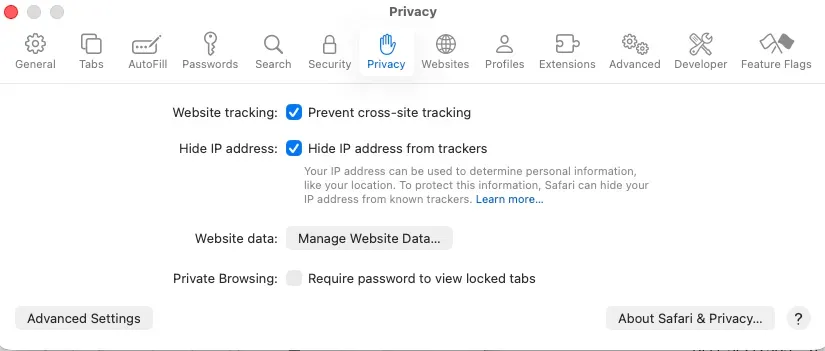
- Make Safari More Secure
Go to: Settings → Safari
Enable:
Prevent Cross-Site Tracking
Block Pop-ups
A faster, cleaner browsing experience with better privacy.
- Learn Essential Keyboard Shortcuts (Mac)
These are small, but transformative:
Cmd + Space → Spotlight
Cmd + Tab → Switch apps
Cmd + Shift + 4 → Screenshot
Mastering these saves hours over time.
- Use Focus Modes Intentionally
Set up modes like:
Work
Sleep
They filter distractions and help you stay in control of your time.
☁️ Part 6: Storage & Backup Strategy
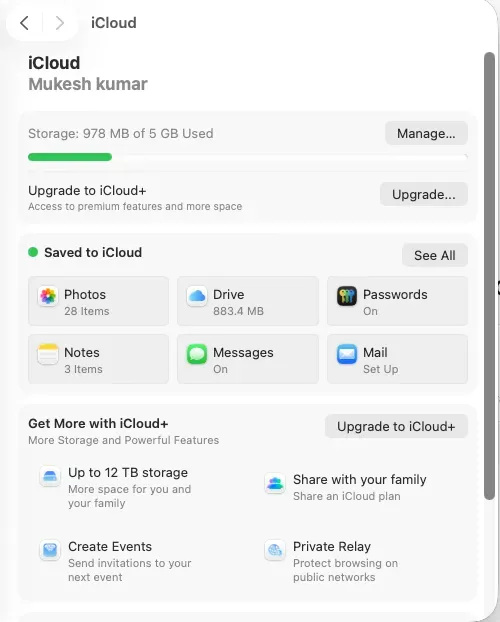
- Enable iCloud Backup
Automatic backups ensure your data is safe even if your device isn’t.
- Optimize Storage
Mac: Enable Optimize Mac Storage
iPhone: Turn on Offload Unused Apps
This keeps your device running smoothly without constant manual cleanup.
🔧 Part 7: Advanced Tweaks Most People Miss
- Reduce Animations for Speed
Go to: Accessibility → Motion → Reduce Motion
This makes your device feel noticeably faster and more responsive.
- Enable Handoff & Continuity
Seamlessly copy, paste, and switch tasks between Apple devices.
Once you get used to it, it’s hard to go back.
- Secure AirDrop
Set AirDrop to Contacts Only.
It’s a simple step that prevents unwanted file requests from strangers.
🎯 Bonus: Power User Essentials
If you want to go beyond the basics:
Raycast → A powerful alternative to Spotlight
Notion → Flexible workspace for notes, tasks, and planning
Google Chrome → Useful if you rely on extensions
🧾 The Rule That Ties It All Together
❌ Disable what you don’t use
🔒 Protect your privacy by default
⚡ Minimize background activity
🧠 Customize for your workflow not someone else’s
A well-configured device doesn’t just feel better it works better, lasts longer, and stays out of your way. Take an hour to set things up properly, and you’ll notice the difference every single day.
Discussion
0 likes